- Home
- LinkedIn Learning
/
LinkedIn Learning
Access online courses and learn business, creative, and technology skills.
LinkedIn Learning provides comprehensive courses, created, and delivered by experts. You can access over 16,000 courses in areas such as business, technology, languages, music, art, photography and more.
Learn at your own pace, watch entire courses or individual videos, and upskill to achieve your personal and professional goals.
Courses can be bookmarked, tracked and when completed, you’ll receive a certificate.
Access LinkedIn Learning

Getting started with LinkedIn Learning
View our LinkedIn Learning frequently asked questions for troubleshooting tips, or Ask Us for assistance.
Access LinkedIn Learning from https://www.linkedin.com/learning-login/go/slq or via One Search. When prompted, enter your State Library membership username and password.
Yes. An app is available for iOS and Android devices.
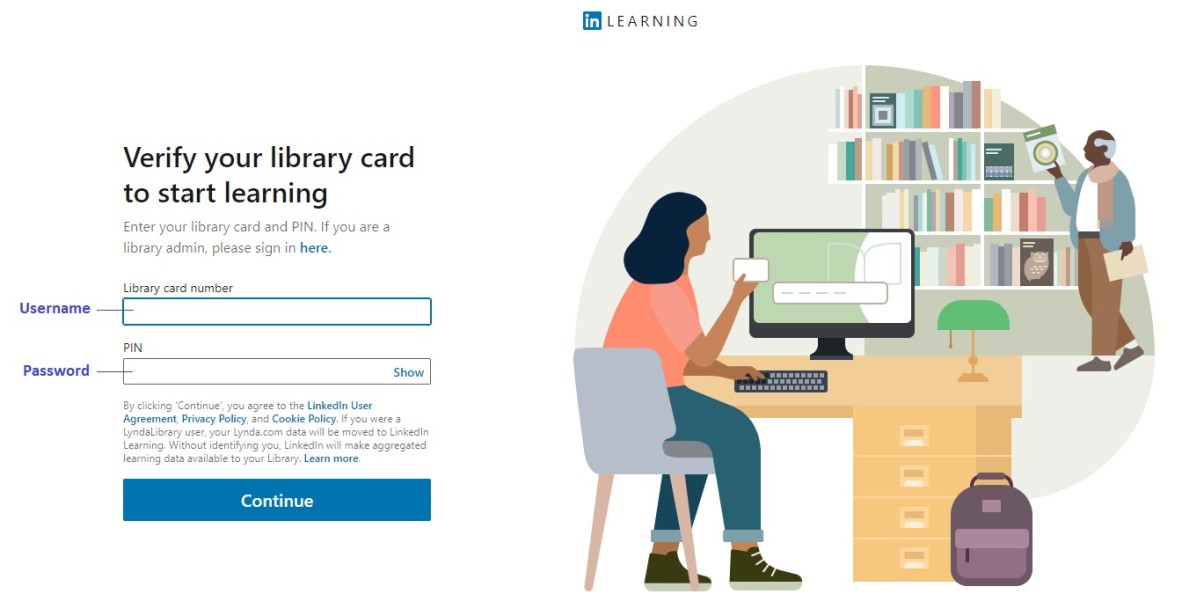
Once you have downloaded the LinkedIn Learning app, select ‘Sign in with your library card’. You’ll be prompted to enter your library’s ID and then your username and password. Enter the required details into the login screen as follow:.
-
Library ID: slq
-
Library card number: username
-
PIN: password
You cannot access LinkedIn Learning for Library using your email address. If you are on a page asking for your email, look for the option ‘Sign in with your Library card’. You’ll be prompted to enter your library’s ID and then your username and password. Enter the required details into the login screen as follow:.
-
Library ID: slq
-
Library card number: username
-
PIN: password
Have you forgotten your username or password? You can enter your email address here to receive an email with your username and instructions on how to reset your password. You can also Ask Us for assistance.
No. Your Lynda.com learning history is not migrated to LinkedIn Learning.
Due to the change in platform State Library advised all Lynda.com users in May of the need to download their learning history from Lynda.com as migration of individual users history to LinkedIn Learning was not possible.
State Library members now have access to the entire library of over 16,000 courses, including courses in English, French, German, Japanese, Spanish, Mandarin, and Portuguese. Previously with Lynda.com, patrons only had access to 7000 English courses.
No, State Library members only need their State Library username and password to access LinkedIn Learning
As part of a continued commitment to privacy, LinkedIn does not capture any personally identifiable information (PII) from patrons. Therefore, names are not included on certificates of completion.
LinkedIn Learning for Library functionality differs from personal LinkedIn Learning accounts due to LinkedIn’s privacy commitments. As such you will be unable to share your LinkedIn Learning for Library certificates directly to your personal LinkedIn profile.
You can however manually create a post in your personal LinkedIn profile, to let your followers know when you have completed a course or gained a new skills.
No. State Library subscribes to LinkedIn Learning, and free access is available to all Queenslanders using your State Library membership.
If you are a Queensland resident, apply for State Library membership online to enjoy immediate access to State Library’s collections and services, including LinkedIn Learning. If you are not a Queensland resident, you will need to investigate the options provided in your state or subscribe to LinkedIn Learning as an individual.
Yes. If you have State Library membership, you can access LinkedIn Learning from anywhere. Our state-wide subscription allows all Queensland residents unlimited access to the online courses from any compatible desktop or portable device, whether on a library computer, at your home or business, or on your mobile device.
Yes. Your State Library membership details are authenticated with LinkedIn Learning when you use the specific URL https://www.linkedin.com/learning-login/go/slq. You may wish to bookmark this URL for easy access.
Try accessing the content on different web browsers to see if that makes a difference. It is also recommended to clear your web browser cache and cookies.
Please Ask Us for assistance, and a staff member will be in touch with you shortly to assist you with LinkedIn Learning.
Please provide the following information when reporting an issue, if possible:
-
URL you are using to access the site
-
Web or App access?
-
PC or MAC?
-
Which browser are you using? (Firefox, Chrome, etc)
-
Last successful login?
-
Details of problem, including screenshots of any error messages
Alternatively, visit the LinkedIn Learning website for more troubleshooting tips.